Add A Free Forum To Your Blogger/BlogSpot Blog

5 commentaires


in free Blogger/BlogSpot blogs, you are not allowed to create a sub-domain or even a new directory (an online folder). So hosting a forum seems impossiblebut not anymore. Before you read any further, see these 2 examples:

1. A Blogger Blog completely changed in to a Forum.
2. A simple (static) page on a normal Blogger blog, converted to a Forum.

Instructions to Add a Forum To Your Blog
:

STEP #1:
Create and publish a new static page on your blog, exclusively for a forum. As an example, check out my forums-static-page here:

http://all4blogs.blogspot.com/p/all4blogs-community.html

STEP #2:
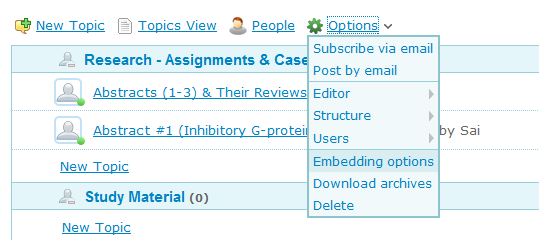
Create a new forum at Nabble: Free Forums at Nabble [You will do this within 5 minutes]
Copy the HTML code...

STEP #3:
Go to Blogger Dashboard -> Design -> Edit HTML and mark the tick-box "Expand Widget Tempaltes".

STEP #4:
Find (CTRL+F) this code, in your template:
<div id='content-wrapper'>

If you are not able to find the above mentioned code, then find (CTRL+F) this one (for new templates made for Blogger Template Designer)
<div class='columns fauxcolumns'>

And immediately ABOVE/BEFORE it, paste the code you got from Nabble, with this ADDITIONAL code (Highlighted in BLUE and RED):

<b:if cond='data:blog.url == &quot;http://all4blogs.blogspot.com/p/all4blogs-community.html&quot;'>
PASTE_CODE_FROM_NABBLE_HERE
</b:if>
NOTE (Important): Replace the code in RED, with the link to your forum-page.

STEP #5:
Save your temaplate.

STEP #6:
This step will HIDE everything from your blog (post content, sidebar widgets etc.) and ONLY forum will be visible in your forum-page.
Find this code in your template:
</head>
And immediately ABOVE/BEFORE it, paste this code:
<b:if cond='data:blog.url == &quot;http://all4blogs.blogspot/p/all4blogs-community.html&quot;'>
<style type='text/css'>
#content-wrapper {
display:none !important;
}
.columns, .fauxcolumns {
display:none !important;
}
</style>
</b:if>
NOTE (Important): Replace the code in RED, with the link to your forum-page.

That's it, a new forum on your blog is ready.
Now, Invite your readers and friends to join you at your forums.


NOTE: If you want to replace an entire blog with a forum, as shown in the first example (Forum In A Blogger Blog), then, first create a new blog. Download the template as a backup. Now, replace everything between the BODY tags in the template:

...
<body>
..
..
..

</body>
...

with the code copied from Nabble. So your template, code will look something like this:

...
<body>
<a id="nabblelink" href="http://n3.nabble.com/all4blogs-Demo-Forums-f6****.html">all4blogs Demo Forums</a>
<script src="http://n3.nabble.com/embed/f6****"></script>

</body>
...

And save the template.
Forums are entirely different from blogs. Forums let your readers interact with each other, create new topics/discussions and some of them even moderate the forums along with you. 
1. Forum from Wikipedia
2. The popular Digital Point Forums


Alternative text

Embed .PDF | .DOC | .DOCX | .PPT | .PPTX | .XLS | .XLSX | .TXT & Other Files-On Blogger

0 commentaires

Here's a highly useful tool, through which you can easily embed almost any type of file anywhere in the web. Click on the logo below:

EmbedIt.in


As an example here's a .doc file (MS Word document) uploaded by me:

From their FAQ section, I considered these points as important for you:
What kinds of files can I embed?
- Pretty much any kind of document, image, or text file. To be specific:
* Documents: doc, docx, xls, xlsx, ppt, pptx, pdf, wpd, odt, ods, odp
* Images: png, jpg, gif, tiff, bmp, eps, ai
* Text: txt, rtf, csv, html

What's the largest file I can upload?
- 20 megabytes.

Can I make an embed private?
Nope.

Can other people embed my file?
Yes; since everything on embedit.in is open to the public, there's nothing stopping somebody else from copying and pasting the code from your webpage or blog.

If you think about it, there would be nothing stopping people from downloading your file and copying it to their website , anyway.

Can I download the file later?
You sure can. Use the button with the arrow on it: Download_button 

*UpdateEmbedit.in has been acquired by Box.net 
Alternative text

7 Ways to Reduce Blog Spam

1 commentaires


Bloggers know that dealing with spam cannot be avoided. Every day spammers find new ways to automatically post comments to blogs, and some can even create blog posts. The technology in use by blog spammers slows your blog to a crawl, as links for all sorts of crazy things are plastered into comments all over your blog. Here are 7 ways to reduce blog spam that can help you reclaim your time and your blog’s performance.

NOTEMost of the methods discussed here will work only on WordPress based blogs. Albeit Blogger too has recently introduced its ownSPAM fighting tool, but it is still in its infancy and so I have mentioned some of the alternative tools/strategies along with the points discussed below.

1. Install and enable Akismet: The first line of spam defense for your blog is a plugin that comes with WordPress. Akismet also has an API that can be adapted to a variety of Web applications. Once this plugin is in place and active on your site, the majority comment spam will be sent directly to your comment spam folder and will never be displayed to visitors on your site. Akismet alone however won’t stop spam: some spam will get through and spammers will still be able to overload your site with their bots.
Blogger Strategy: You can use Akismet in Blogger/BlogSpot blogs, by installing alternate comment-forms (Disqus or IntenseDebate).

2. Blog comment settings: Change the number of links allowed in comments. Because comment spammers are notorious for their links, be sure that you set your blog to a low number of allowed links in comments. In WordPress, the recommended level is “1,” unless you want to have every comment go into moderation. This technique is effective in reducing the number of spam comments that are displayed on your blog, but it does not prevent access to your site by spammers. Another setting you can use to combat spam is the “Spam words” list. By creating a list of words you consider spam, you redirect all comments with those words to your comment moderation queue. In WordPress, these settings are found in the “Settings,” “Discussion,” “Comment Moderation” section of your dashboard.
In Blogger: The exact spam detection checks employed by Blogger are not known, but it does filter out some comments as SPAM with 2 or 3 active links in them. As of now, there is no publicly available list of 'Spam words' and there's no option to create one yourself for your blog. You can recommend these features to Blogger over here: Blogger Help Forum.

3. reCAPTCHA: This plugin works like the CAPTCHA images you type in all across the Internet. These things are annoying to many users because of the difficulty associated with figuring out what each image is. Still, requiring random human input before accepting a comment will stop automated spammers in their tracks.
In Blogger: You can activate CAPTCHA (word verification) at Blogger Dashboard -> Settings -> Comments.

4. Stop comments without referrers: If you are experienced at Web programming, you can modify your .htaccess file to block comments that are received from users with no referrers. There are several ways to do this and you can disable your blog if you do something wrong, so be sure to back up your original .htaccess file and only follow directions from a reputable source. You can also use a custom WordPress function to make this happen. Search the WordPress site and Google to find out all your options.
In Blogger, adding or editing htaccess files is not possible, so this is limited to WP users.

5. Close comments on old posts: In your WordPress dashboard you can go to the “Discussion” section of your “Settings” area and define the age at which posts close to comments. This reduces the amount of spam that comes to your blog and also helps keep your online community fresh.
In Blogger, you cannot completely close comments for older posts (you CAN do it manually by editing each and every post), but you can activate and limit comment moderation only for your older posts. Go to Dashboard -> Settings -> Comments and against Comment moderation select the number of days.

6. Wp-Ban will do a lot for you in the fight against spam: Rather than just routing spam comments to your spam folder, Wp-Ban actually prevents spammers from gaining access to your site. Every comment in WordPress is stamped with the user’s IP address, so all you have to do is populate a list with the adresses or domains of all your site’s spammers. This makes a huge difference in the volume of spam you get delivered to your blog: just remember however, it is not foolproof.
Again, for Blogger/BlogSpot blogs, this can be done only via Disqus or IntenseDebate.

7. Change the name of your comment file: In WordPress, almost everyone’s comment entry file is called “wp-comments-post.php.” Rename the file something different such as “wpcom.php” and then go into your WordPress dashboard to edit your theme to include the new name. Because the one file spammers look for isn’t there, they will not be able to leave spam.

Blog spam is a nuisance that rarely goes away by itself. In fact, the longer your blog is operational, the more spammers will attack your site. Use these 7 ways to reduce blog spam and get some relief. Be sure to try more than one of these methods to maximize the amount of spam you block.
If you are working on Blogger/BlogSpot platform and comments-SPAM is a serious problem on your blog, then I would advise you to switch to either of the freely available alternate comment-forms (Disqus or IntenseDebate). You can read more about their SPAM-fighting strategies here: Disqus & IntenseDebate.
Alternative text

Add Comments Bubble To Post Titles In Blogger

0 commentaires

this tutorial will add comments-bubble icons to your post-titles displaying the total count of the comments.

comment bubbles in Blogger

LIVE DEMO

Instructions to follow:

STEP #1:
Log in to Blogger, go to Layout -> Edit HTML
And mark the tick-box "Expand Widget Templates"

STEP #2:
Now find this in the template:
<h3 class='post-title entry-title'>

And immediately BELOW/AFTER it, paste this code:
<!--COMMENT-BUBBLES-STARTS--><b:if cond='data:post.allowComments'>
<a class='comment-bubble' expr:href='data:post.addCommentUrl' expr:onclick='data:post.addCommentOnclick'><data:post.numComments/></a>
</b:if><!--COMMENT-BUBBLES-STOPS-http://bloggerstop.net-->

Now find this code in the template:
</head>

And immediately ABOVE/BEFORE it paste this code:
<!--COMMENT-BUBBLES-STARTS--><style type="text/css">
.comment-bubble {
float: right;
background: url(http://i49.tinypic.com/2vugahu.jpg) no-repeat;
width: 55px;
height: 38px;
font-size: 18px;
margin-top: -15px;
margin-right: 2px;
text-align: center;
}
</style><!--COMMENT-BUBBLES-STOPS-http://bloggerstop.net-->

Edit the code in RED to change the image being used in the hack.
IMPORTANTYou may use any image instead of the one linked in the code above (STEP #3), but you have to mention its dimensions correctly (width and height) for correct placement of numbers on the image.

Comment-Bubbles you may use for this Blogger hack [Right Click and "Copy Image Address/Location"]:


Alternative text

Excellent Vertical CSS Menus For Blogger

1 commentaires

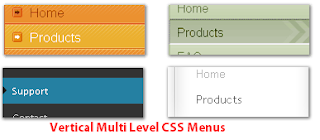
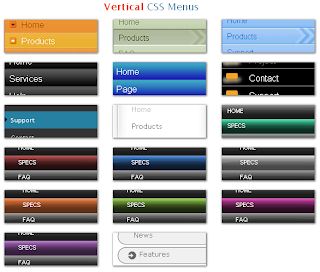
 today we will see how you can add Vertical CSS Menus in your Blogger or Blogspot Blogs. we have a different 17 types of vertical CSS Menus which you can integrate in your blog. This tutorial is also very easy to understand and after reading this post you will be able to integrate Vertical CSS Menus in your Blog. All Menus given here are customizable and free to use and Download. Vertical CSS menus work perfectly as a sidebar navigation solution for your blog.
Vertical CSS Menu for Blogger


Vertical Menus are specially for the blogger's who have the kind of Blog design where they can easily set the Vertical menus in their Sidebar as a Widget and hence can improve the look and feel of the blog as well. Here is a list of 17 Vertical menus and i will give you the demo and download link for all of them. Now what you need to do is just picked up the one you liked most and download it first. Below is a Complete list of Vertical menus.
Add Vertical Multi Level CSS Menus in Blogger


Below Menus are from the Above image and menu numbers are 1 to 17 respectively.
1. Orange PumpkinDemo | Download Source
2. Olive ArrowDemo | Download Source
3. Sky ArrowDemo | Download Source
4. Dark BubbleDemo | Download Source
5. Aqua BubbleDemo | Download Source
6. Bittbox BlackDemo | Download Source
7. Massive BlueDemo | Download Source
8. White GhostDemo | Download Source
9. Grey HatDemo | Download Source
10. Aqua Bubble WrapDemo | Download Source
11. Red Bubble WrapDemo | Download Source
12. Blue Bubble WrapDemo | Download Source
13. Grey Bubble WrapDemo | Download Source
14. Orange Bubble WrapDemo | Download Source
15. Lime Bubble WrapDemo | Download Source
16. Pink Bubble WrapDemo | Download Source
17. Purple Bubble WrapDemo | Download Source


Before Going ahead you should have now three Things.


1) HTML File - Contains the code of the menu
2) Images folder - Contains Images used in menu
3) CSS file - Contains Style used in menu

Now After Choosing the Menu follow the steps given below to add the menu in Blogger.

Step 1. Go to your blogger dashboard and select the blog in which you want to add drop down menu.
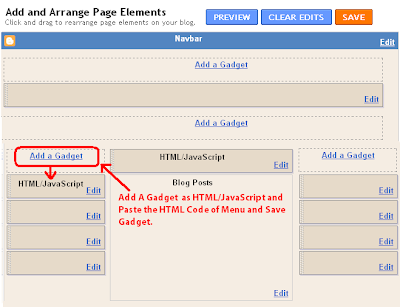
Step 2. Navigate to the Layout > Page Elements.

Layout Page ElementsStep 3. Now click on Add a Gadget and paste the menu code (Copy the code from the downloaded source of the drop down menu) and click on save button.

Step 4. Now Drag & Drop that Widget to the top of the Blog Posts Section and Done!.

Add Menu in BloggerHow to Add CSS for Menu:

  • On Your Dashboard, Click on Layout (see below shown picture for further assistance)
Select   Blogger Layout
  • Now Click on HTML (see below shown picture for further assistance)

Edit HTML

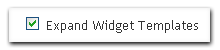
  • Now Check the box of Expand Widget Templates (see below shown picture for assistance)
Expand template code

Now find this code ]]></b:skin> and Put the CSS Code exactly Above the code.


How to Add Images of Menu in Blogger:
To Add any image you need to just upload it to the Picasa or in blogger and copy the generated HTML image Code and paste that code in Menu Code or CSS Code wherever applicable. if you find any difficulty where to put image and why comment below.


Alternative text

How to Earn money with your blog?

5 commentaires


Many people want to make money online and expect that to happen in one night. But that is not possible. Because you can never get anything that easily in life. So the next question that arises "Is it that difficult to earn money through blogging?" No!!! So, what is the answer? Simple!! You just put some hard work and you can earn money!! First you need to know what are the ways to make money with a blog. So in this post let me tell you the various ways to make money.

Earn through PPC(Paid Per Click)


The first thing that comes into our mind when we think we need to make money with our blog is Google Adsense. These are ads which are automatically displayed by Google. When people click them, you earn money(a percentage of the original cost paid by the advertiser). I heard both positive and negatives about them. Few of friends make good money through them while few do not make even a cent. I am sure if you have enough traffic and have the right content, you can end up with lots of money.

The major advantage is that they display ads relevant to the content which many other sites do not. Other alternatives to Adsense will be Bidvertiser, Adbrite, LinkWorth, PogAds and many more.... I recommend LinkWorth because they have the best services and also the payments are sent on time. Moreover, I tried it personally and had few success with them.


Earn through Affiliate Sponsors

Another way to make money is through using affiliate ads. These are usually linked to a product. If someone buys a product via your blog, then you get a % of the sale. The most popular affiliate program is Amazon, who may give upto 6% of a sale. Other alternatives are WidgetBucks, Chitika and so on... I recommend you to try Amazon!!!


Earn through Paid Posts

This method will make good amount if you are person who write original content. It needs good command over the language you write. People who copy and paste contents from other sites will not make any cent through this method. If you are interested in this, you can make easy cash through PayPerPost. Other alternatives would be SponsoredReviews,Smorty,Blogvertise and so on. I recommend you to join PayPerPost.


Earn through Private Ads


Another way for bloggers to make money is through selling ads directly to sponsors. This means there is no intermediary like Google to collect a percentage of what you made. You may also get a higher return because the advertiser can better target his ad. Though this process looks very simple, it is very difficult to get an advertiser who will publicize his ads in your blog because your blog can never have a traffic like Yahoo or Google. But still if you spend time and search in your niche, you may get one!!!

The above mentioned methods are very simple techniques that will make money money for you from your blog. Though they seem to be simple it is quite difficult to achieve that because you need huge traffic coming to your blog. And that is only possible if you update your blog regularly and post genuine content in it. Hope everyone make money online with these simple tips. 
Alternative text


Sponsors

Protected by Copyscape Web Copyright Protection

All For Blogs. Copyright 2011 All Rights Reserved powered by Revolution Church Theme hosted on Blogger